
Understanding Updates
- From time to time improvements will be released via software updates, including bug fixes and new features.
- There are three types of updates: Grill, WIFI and Display (Screen).
- Updates are completed using the Trimal Aus mobile App with the grill connected to both WIFI and Bluetooth.
Grill Updates
- Updates will improve various aspects of the grill operation and temperature control.
- Update time: 1 to 2 minutes
WIFI Updates
- Updates improve WIFI connection reliability
- Update time: 2 to 3 minutes
Display Screen Updates
- Updates menu and screen temperature display content.
- Update time: 5 minutes to 2 hours (depending on update content).
- Do not complete the screen update if having connectivity issues, as it must have good WIFI connection!
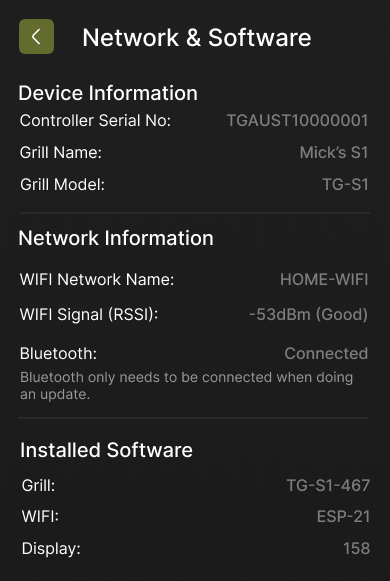
- The WIFI signal (as shown in the Network & Software screen) should be OK or GOOD.
Preparing for Update
- Ensure the latest version of the Trimal Aus iOS or Android App is installed on your mobile device.
- Grill must already be connected to the Trimal Aus App. If not, click here for instructions.
- Updates can’t be completed while the grill is operating.
- Stand close to the grill, as Bluetooth is used to send the update signal to the controller.
Check Available Updates
- Open the Trimal Aus App on your phone (do this before powering on the grill)
- Plug in, switch on and then hold the POWER button for 2 seconds to turn grill on.
- Stand close to the grill, as Bluetooth is used to send the update signal to the controller.
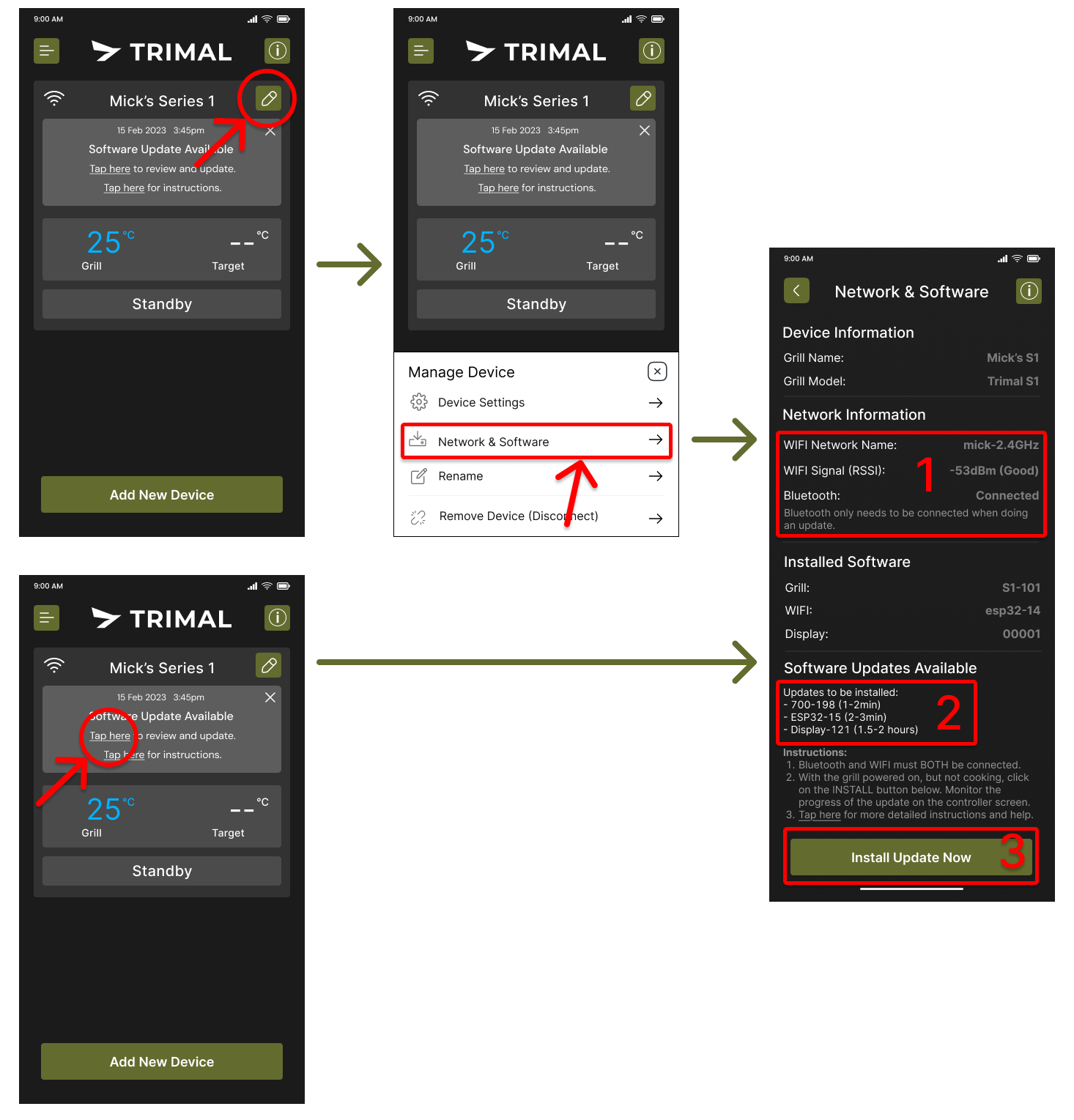
- Tap on the pencil icon and select Network & Software or the via the link in the grey information message.
- Double check to ensure both WIFI and Bluetooth are connected (#1 in diagram below)
- WIFI must have a Good RSSI signal (-60dBm or better) to ensure a reliable connection.
- Bluetooth must be connected. If not, restart the App, and check mobile device Bluetooth settings.
- Available updates they are listed (#2 in diagram below).
- Updates are installed in the order listed, so it is possible to just install the first one, and then use the grill (unless otherwise instructed) without completing the subsequent updates.
- Updates will never automatically start – you must press the button to commence the process.
- Tapping on the Install Update button (#3 in diagram below) will begin downloading and updating the software on the controller. Before starting an update, see the following sections for Grill & WIFI software updates and Screen updates, as there are some differences in the process and time required.
Grill & WIFI Update Process
- Review the information above, ensuring both WIFI and Bluetooth are connected.
- Tap on the Install Update Now button.
- Review the progress of the installation on the controller screen.
- Once the update begins the App can be closed and the phone does not need to stay in close proximity to the grill as the update is done via WIFI.
- Grill or WIFI updates should take less than 2 minutes to completed.
- Once the update has completed the screen will go blank.
- Wait at least 5 seconds, then press and POWER button to wake the grill up.
- Power cycle the grill between updates – meaning physically turning off the power switch on the back of the hopper, wait 2 seconds then turn back on again.
- One updates are completed, turn on and use as normal.
Failed Update
Check the points below. If still having issues updating, please contact the Trimal support team.
Failure to Start Update
If the update does not start within 10 seconds, the network connection may be too poor.
- Double check WIFI signal strength.
- Quit the restart the Trimal Aus mobile App.
- Switch grill off and back on using the power switch on the rear of the hopper.
- Try to complete update again.
Update Progress Frozen
- If Grill or WIFI updates freeze before completing the update, just power cycle the grill and it will return to the previous version of the software.
- Check WIFI signal strength, and try the update again.
Nothing Happened
Complete in the following sequence:
- Open the App (do this before powering on the grill)
- Power on the grill (switch on power, then press POWER button)
- Try the update process again
Display Screen Update Process
- Review the Preparing for Update information above, ensuring both WIFI and Bluetooth are connected.
- The screen update process can take up to 3 hours to finish.
- The update must be completed successfully before the grill can be used, so it is best to complete on a day when the grill is not going to be used for cooking. ie. Don’t update the morning before an important evening cook-up for friends and family!
- This update will only be completed once any Grill and WIFI updates have been completed.
- To begin the update, press on the Install Update Now button in the app.
- This screen will show the following information:
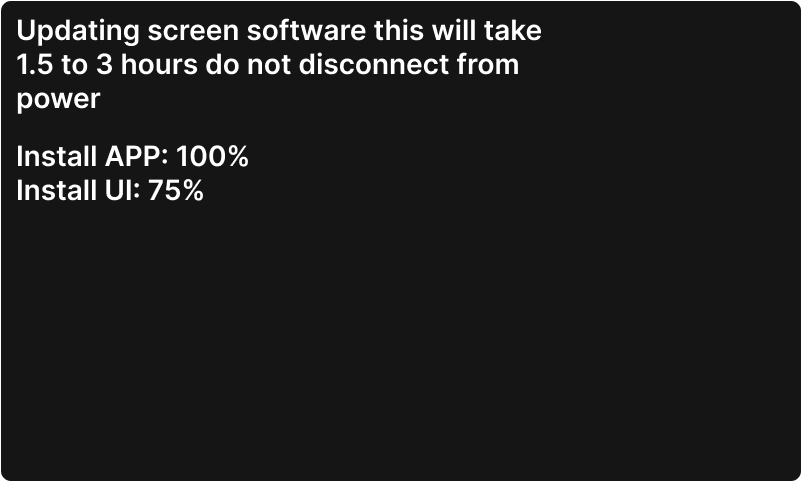
- The “Install App” update will only take a few minutes to complete, then the Install UI will commence, which can take up to 3 hours to complete.
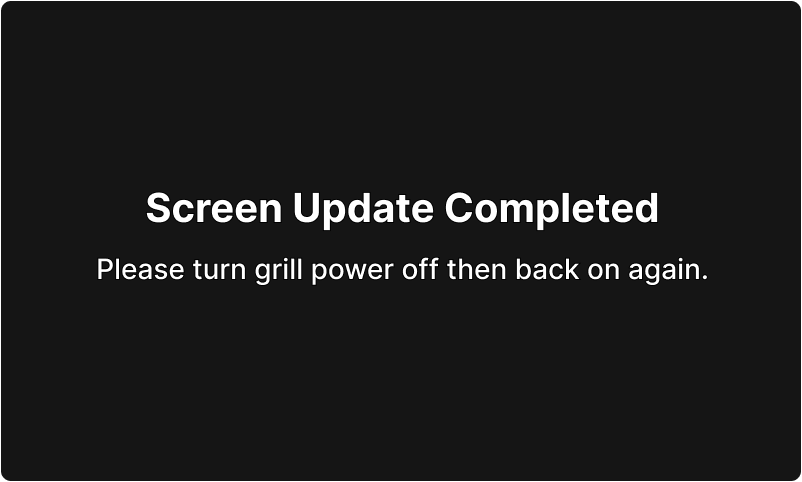
- Once completed the Trimal logo or following screen (depending on model) will be displayed.
- Power cycle the grill and turn on and use as normal.
Screen Update Failed
- If the update process fails (normally due to poor WIFI connection), or never starts, the following screen will be displayed.
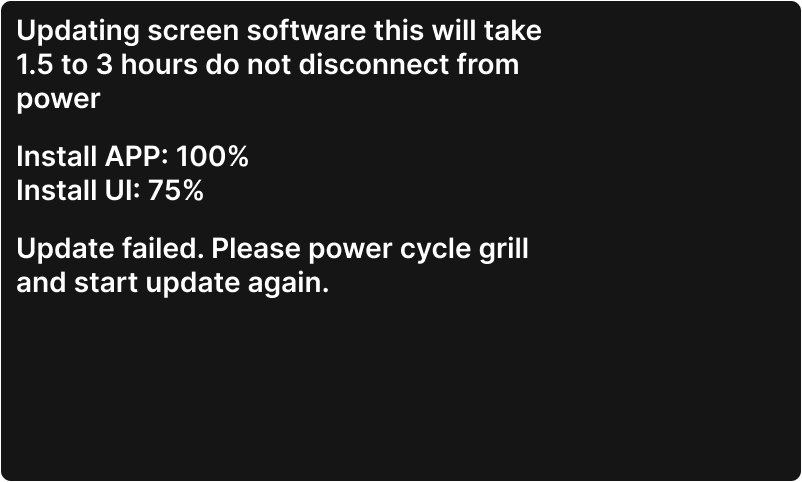
- Power cycle the grill.
- Once the grill has power cycled, the follow screen will be displayed.
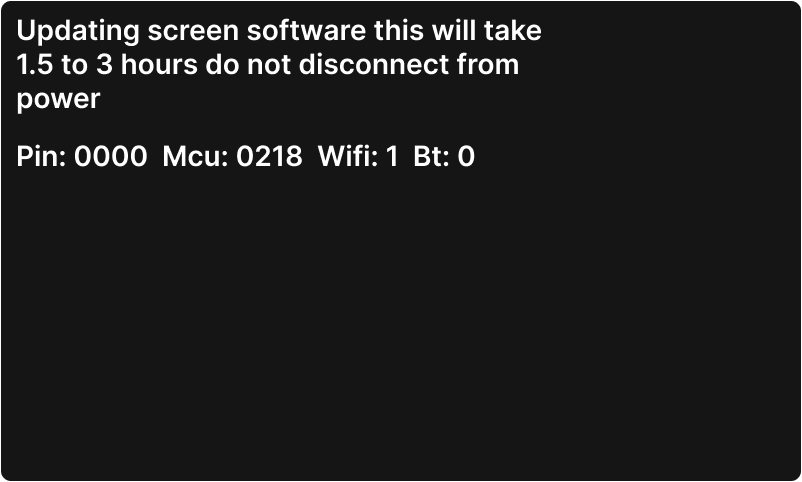
- Open the Trimal Aus App, navigate to the same location as before (Network & Software) and tap on the Install Update Now button to restart the update.
- WIFI: 1 and Bt: 1 indicates they are connected. Both must be connected (1, not 0) to be able to start the update.
- If WIFI: 0, disconnect the grill from the App (Pencil icon, Remove Device), and connect again.
- Add New Device to connect to the controller again, and use the Pin that is provided on controller display (above shows 0000 as an example).
- Go into Network & Software and start the update again.
- Wait for the update to complete.
- If the update fails again please contact the Trimal support team.
Software Versions
Current Versions
Grill Software: (22-11-2025): TG-S1-543
- Improved BBQ Hot Plate mode operation
- Faster heat up
- Automatically changes to LOW if temperature exceeds 250oC which may happen when set to MEDIUM or HIGH and lid left shut for too long – avoids excessively high temperatures.
- Higher heat output in MEDIUM and HIGH modes.
- Pellet level measurement improvements
- Slower response time to avoid accidentally registering a high pellet from hand movements when pouring in pellets.
- Takes several measurements over 5-10 seconds before setting the new level.
WIFI ESP32 (8-10-2025): ESP-21
- Notifications implemented to App for “Ready to Cook” and any errors.
- Improved WIFI connection reliability
DISPLAY (31-10-2025): 160
- Removed small lower-higher values on temperating setting screen
Previous Versions
Grill Software: (14-11-2025): TG-S1-542
- Improved BBQ Hot Plate mode operation
- Faster heat up to pre-heat temperature of 160oC (hotplate temp ~200oC)
- Can change between Low, Medium and High once temp has reached 160oC (even once drops back below 160oC)
Grill Software: (5-11-2025): TG-S1-541
- Temperature Improvements
Grill Software: (3-11-2025): TG-S1-540
- Fixed black screen when power on
- Improved update installation reliability
- Added WIFI and Bluetooth refresh and disconnect options in settings menu
- Improved flameout protection
- Less smokey startup
- Improved temperature stability and less overshoot
- FN button control of rotisserie rotation in AUTO mode and Wood Pellet Smoker
- Ignitor control “YES/NO” options in settings menu
- Removed small lower-higher values on display when changing target (was causing confusion and cluttering view)
GRILL (19-09-2025): TG-S1-467
WIFI ESP32 (8-10-2025): ESP-21
DISPLAY (28-09-2025): 158
Lightblue App

Lightblue is a free App that can be used to connect via bluetooth to the controller when initialising the updates via the Trimal Aus App is not working.
Download the Lightblue App
Steps to Update
- The grill must have solid WIFI logo the controller display indicating it is connected to WIFI.
- Quit the Trimal Aus App before using the Lightblue App.
- The codes to use in Lightblue to start the download (you may need to copy/paste and then delete and manually type in the last F in the code):
- Grill Software: FA07F9F9F9F9FF
- WIFI (ESP-32): FA07F9F9F9FAFF
- Display: FA07F9F9F9F8FF
- Power cycle (turn power switch off for 5 seconds then back on) between each update.