
Connect S1 to the Trimal Aus App
Follow the steps below to connect the Trimal S1 grill to the Trimal Aus App.
- Connect mobile device to WIFI network (2.4GHz, not 5GHz). If not sure how to do this, or can’t connect to your WIFI, click here for more instructions.
- Plug in the S1, turn on power switch and press and hold POWER button for 2 seconds to turn on.
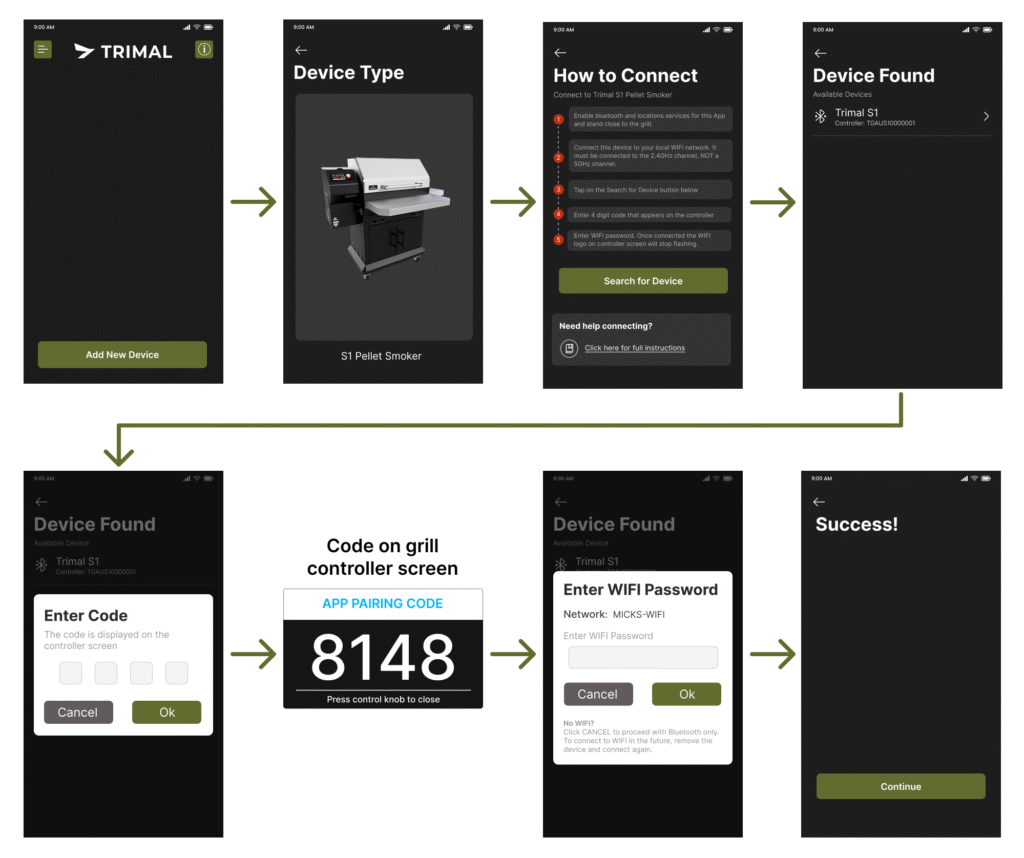
- Click on Add New Device button.
- Tap on the Trimal S1 image.
- Tap on Search for Device button.
- After a few seconds the grill should appear in the Device Found list.
- Tap on the controller (Eg. TGAUST10000001)
- Enter the 4 digit code that appears on the controller screen.
- Enter the WIFI password. Ensure this is entered correctly, taking note of upper and lower case letters. Copy and pasting is a safer method that typing the password.
- Success! Grill is now connected and will visible in the App home page. Bluetooth does not need to stay connected once WIFI has been connected, so don’t worry if the Bluetooth icon is cross out.
Update Software
Once connected the software needs to be updated to the latest version. Click here for instructions.
WIFI Connection Issues
If having issues connecting to WIFI, check out this article.